

Widget tab
Embed the ElevenLabs agent widget in a Microsoft Teams tab for click-to-talk.
Overview
Host a small HTML page that loads the agent widget and surface it as a Teams tab. Users open the tab and talk to the agent in the Teams client — no phone number or telephony. This is the lightest-weight approach; use it for internal self-service assistants and demos.
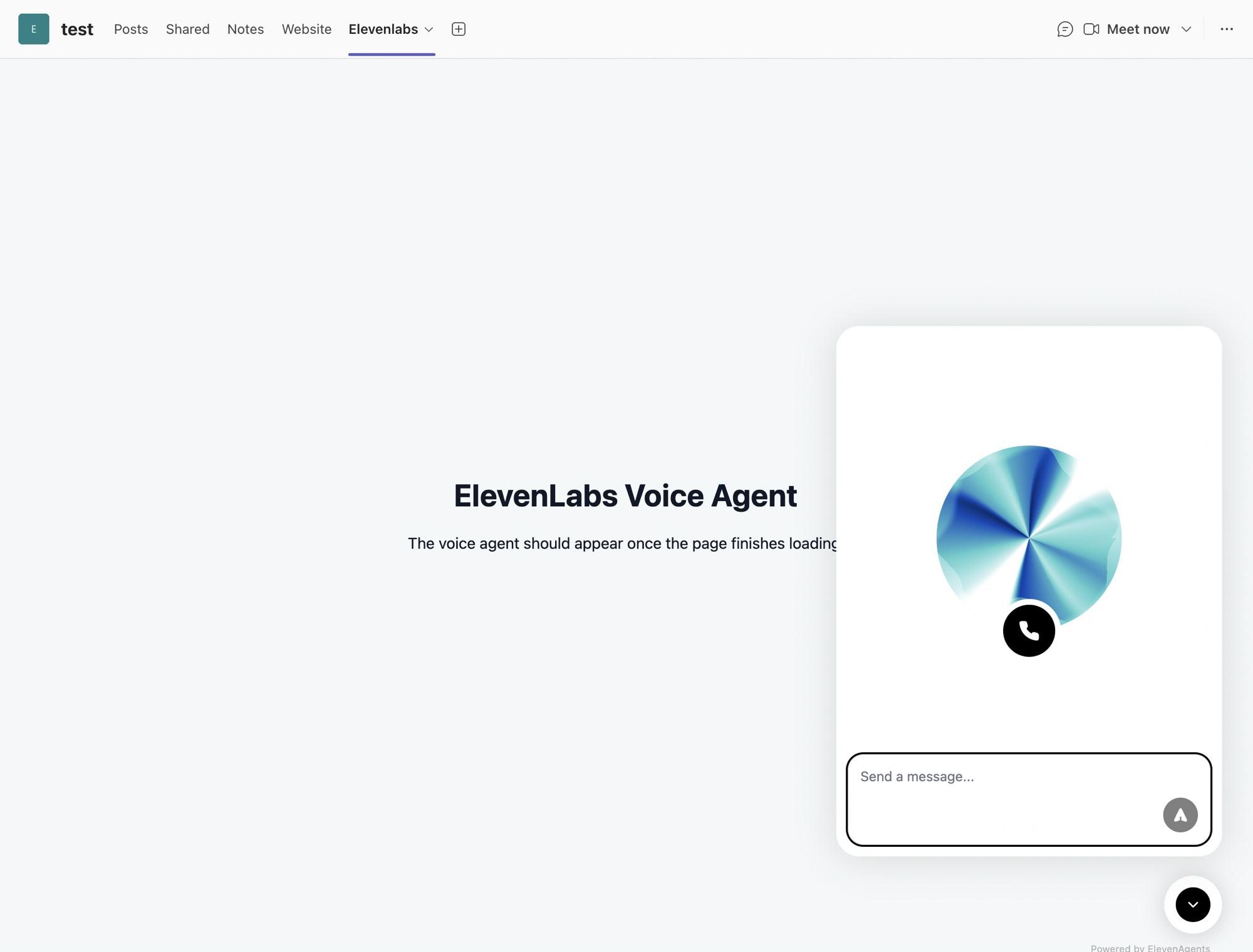
How it works
The widget is a web component. Teams renders a tab’s contentUrl inside a webview (iframe), so the widget runs exactly as it would on a website — including microphone capture, provided the page is allowed to embed in Teams and is granted media permission.

Teams will not execute a raw <script> pasted into a chat, message, or Loop page. The widget
script must live on a page you host, which Teams then embeds as a tab.
Requirements
- A public ElevenLabs agent with authentication disabled (Advanced tab of the agent settings). Widgets require this.
- An HTTPS host for a single static HTML file (Vercel, Netlify, Cloudflare Pages, Azure Static Web Apps, etc.).
- Permission in your tenant to upload a custom Teams app (Teams admin center → Manage apps → custom app upload), if you use the custom-tab option.
Step 1 — Create the widget page
Create agent-widget.html with the widget embed and your agent ID:
Deploy it to your HTTPS host and confirm it loads and the mic works in a normal browser first.
If your workspace is on a data residency
environment, add the widget’s server-location attribute so it connects to your region — see
widget customization for the supported values.
Test the page standalone in a browser before touching Teams. If the mic doesn’t work there, it won’t work in the Teams webview either.
Step 2 — Add it to Teams
You have two options, in increasing order of reliability for voice.
Option A — Website tab (quickest, may be link-only)
In a chat or channel, + Add a tab → Website, paste your HTTPS URL, and save.
The built-in Website tab sometimes opens the page as an external link rather than embedding it — and even when embedded, microphone access in the Teams desktop webview can be blocked. If voice fails, use Option B.
Option B — Custom tab app (recommended for voice)
A tiny custom Teams app declares the page as a static tab and requests media permission, which is what makes the microphone work reliably inside Teams.
Create the manifest
Create manifest.json. Replace your-domain.com with your host and set a unique GUID for id:
The key fields for voice are devicePermissions: ["media"] (microphone) and listing every domain the page touches in validDomains (unpkg.com for the widget script, *.elevenlabs.io for the agent).
Package the app
Add a color.png (192×192) and outline.png (32×32, transparent) next to the manifest, then zip the manifest and the two icons at the root of the archive:
Upload and open
In Teams: Apps → Manage your apps → Upload an app → Upload a custom app, select voice-agent.zip, then open the Voice Agent tab and grant microphone access when prompted.
Teams admins can skip the client UI and publish the app to the whole org from PowerShell — it then shows up for everyone under Apps → Built for your org:
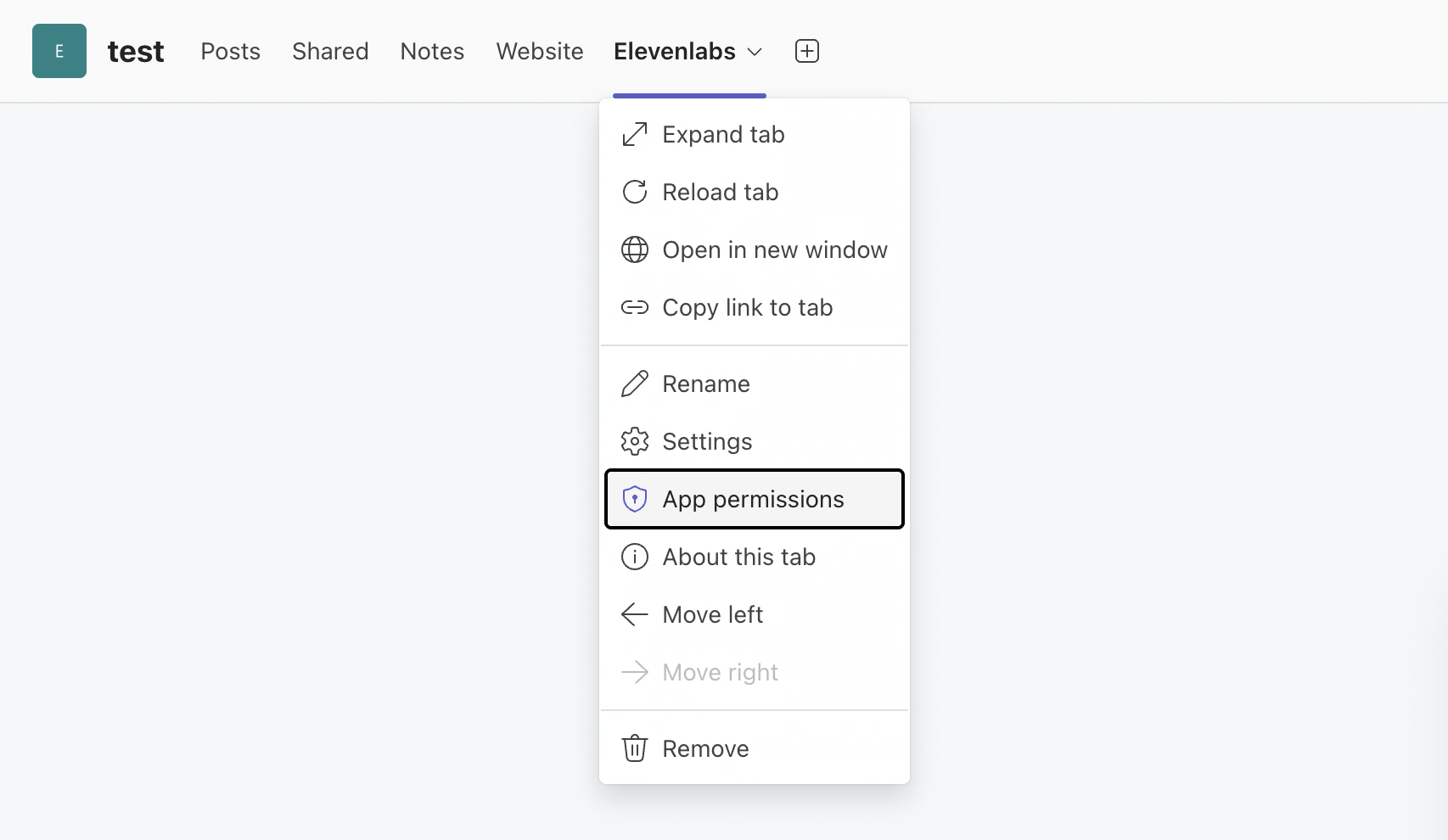
If no prompt appears, open the tab’s dropdown and choose App permissions to grant microphone access manually:
Step 3 — Allow Teams to embed the page
Your host must permit Teams to iframe the page. If you control response headers, set:
If Teams keeps opening the page in a browser instead of embedding it, the page is being blocked from iframe embedding — fix the CSP / X-Frame-Options on your host.
Troubleshooting
The tab opens the page in a browser instead of embedding it
The page is blocked from being iframed. Remove any X-Frame-Options: DENY/SAMEORIGIN and set
the frame-ancestors CSP shown above to allow the Teams domains. The custom tab app (Option B)
is also more reliable than the built-in Website tab.
The widget loads but the microphone doesn't work
This is the Teams webview permission layer. Use the custom tab app with
"devicePermissions": ["media"], and grant the app microphone permission in Teams (tab dropdown
→ App permissions). Teams web and Teams desktop behave differently — test both. As a
fallback, offer an “Open in browser” link.
The widget never appears
Confirm the agent is public with authentication disabled (agent Advanced settings), and
that unpkg.com and *.elevenlabs.io are in the manifest validDomains.