Graph calling bot

Call or chat with your ElevenLabs agent by name inside Microsoft Teams, like a colleague.

Overview

This approach makes the agent a callable Teams identity. A user searches for it by name and calls it 1:1, and the agent answers in real time — no phone number, PSTN, or Communications Credits. It’s the only approach callable by name, and the most involved to run.

It uses a Microsoft Graph real-time media bot (the Cloud Communications calling platform). The media SDK (Microsoft.Skype.Bots.Media) is .NET on Windows Server only — there is no Linux or non-.NET path for raw audio in Teams calls.

This is the only approach that’s callable by name inside Teams. Prefer the widget tab for a lighter setup, or ACS when you specifically want a phone number.

How it works

A Teams user calls the bot by name; Teams routes the call to the media bot on a Windows VM, which bridges raw PCM 16k audio to the ElevenLabs agent over a WebSocket
Call by name → media bot → ElevenLabs

The bot answers with application-hosted media, receives 50 audio frames/sec (20 ms PCM 16 kHz), bridges them to the ElevenLabs agent over a WebSocket, and streams the agent’s audio back into the call.

Requirements

  1. An Azure Bot registration + app (Entra app registration).
  2. Graph application permissions with admin consent: Calls.AccessMedia.All (raw media) plus Calls.Initiate.All.
  3. A Windows Server VM (≥ 2 physical cores — e.g. Standard_D4s_v3) with a public IP and open media ports.
  4. A CA-signed TLS certificate on a public FQDN for the media/signaling endpoint (the media platform rejects self-signed certs).
  5. An ElevenLabs agent set to PCM 16000 Hz on both legs: TTS output format on the Voice tab, user input audio format on the Advanced tab.

A D2s_v3 (2 vCPU = 1 physical core) fails with MediaPlatform needs a system with at least 2 cores. Use a size with ≥ 2 physical cores (e.g. D4s_v3).

Permissions & roles

ScopeRole / permissionWhy
EntraApplication Administratorcreate the app registration + Azure Bot
EntraGlobal Administrator / Privileged Role Administratorgrant admin consent for the Graph calling permissions — app permissions cannot be self-consented
Microsoft Graph (application)Calls.AccessMedia.All, Calls.Initiate.Allanswer 1:1 calls and access raw media
Azure RBACContributor on the resource groupcreate the Windows VM + Azure Bot
Teams adminallow custom app upload; enable the bot Calling channelsideload the app and receive calls

Step 1 — Register the bot + Graph permissions

Create an app registration and an Azure Bot bound to it, then grant + consent the calling permissions (you need Global Admin / Privileged Role Admin to consent):

$APPID=$(az ad app create --display-name "ElevenLabs Teams Agent" \
> --sign-in-audience AzureADMyOrg --query appId -o tsv)
$az ad sp create --id "$APPID"
$# create a client secret and record it
$az ad app credential reset --id "$APPID" --display-name bot --query password -o tsv
$
$# Azure Bot bound to the app
$az bot create --resource-group $RG --name el-teams-agent-bot \
> --app-type SingleTenant --appid "$APPID" --tenant-id $TENANT \
> --endpoint "https://YOUR_FQDN/api/messages" --sku S1

Grant the two Graph application roles and admin consent (needs Global Admin / Privileged Role Admin), then confirm the assignments landed:

$# Graph app roles: Calls.AccessMedia.All, Calls.Initiate.All
$az ad app permission add --id "$APPID" --api 00000003-0000-0000-c000-000000000000 \
> --api-permissions a7a681dc-756e-4909-b988-f160edc6655f=Role \
> 284383ee-7f6e-4e40-a2a8-e85dcb029101=Role
$az ad app permission admin-consent --id "$APPID"
$
$# Verify — should print both role ids
$az rest --method GET \
> --url "https://graph.microsoft.com/v1.0/servicePrincipals(appId='$APPID')/appRoleAssignments" \
> --query "value[].appRoleId" -o tsv

If admin-consent returns Consent validation failed, grant the app roles directly on the service principal instead:

$GRAPH_SP=$(az ad sp show --id 00000003-0000-0000-c000-000000000000 --query id -o tsv)
$BOT_SP=$(az ad sp show --id "$APPID" --query id -o tsv)
$for ROLE in a7a681dc-756e-4909-b988-f160edc6655f 284383ee-7f6e-4e40-a2a8-e85dcb029101; do
$ az rest --method POST \
> --url "https://graph.microsoft.com/v1.0/servicePrincipals/$GRAPH_SP/appRoleAssignedTo" \
> --body "{\"principalId\": \"$BOT_SP\", \"resourceId\": \"$GRAPH_SP\", \"appRoleId\": \"$ROLE\"}"
$done

In the portal, verify in the Entra admin center under App registrations → your app → API permissions: both permissions should show Granted with green checks.
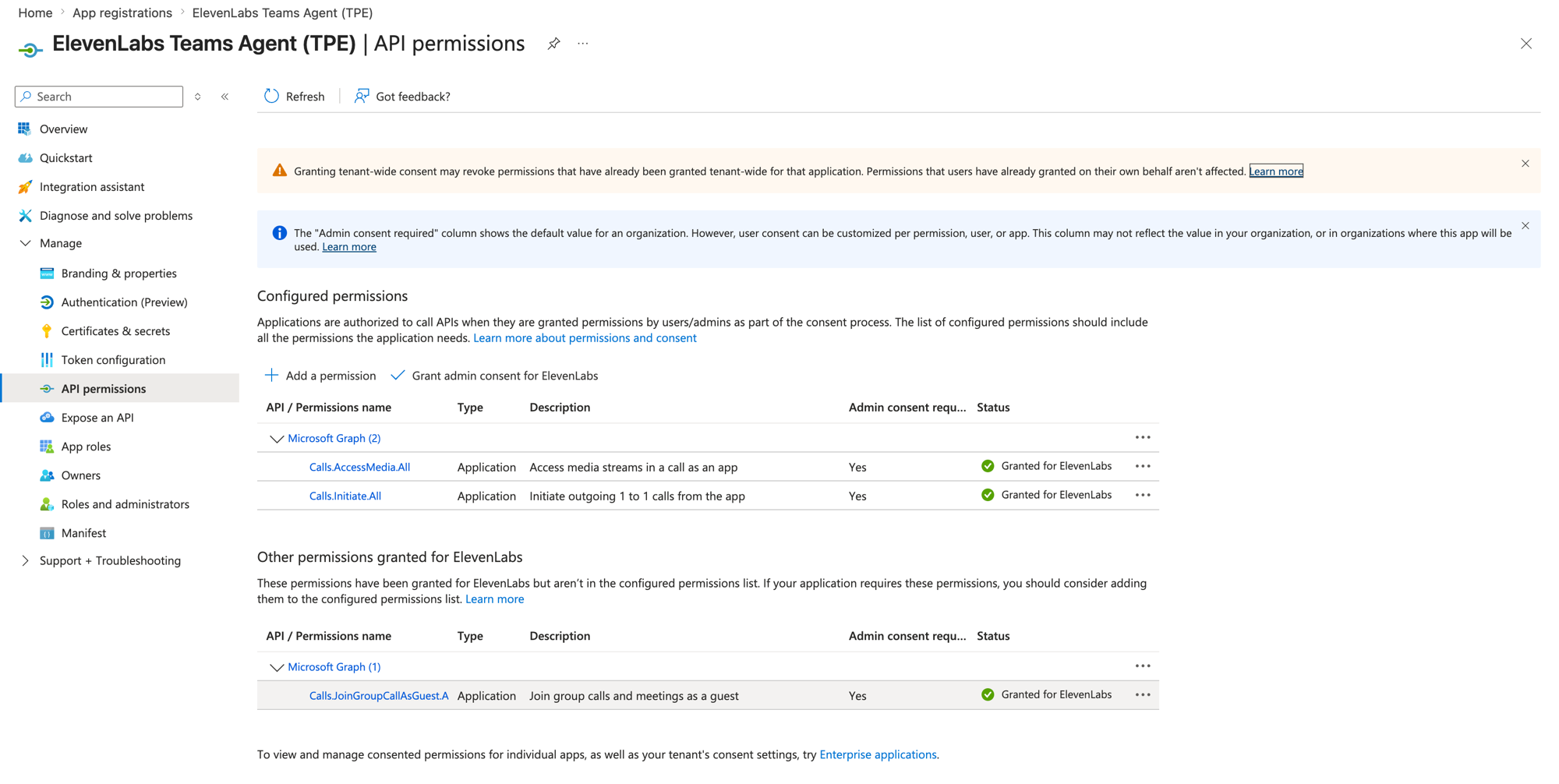
The app registration API permissions blade showing Calls.AccessMedia.All and Calls.Initiate.All
granted

App registration → API permissions after admin consent

Step 2 — Provision the Windows VM, cert and ports

$az vm create -g $RG -n teams-media-bot --image Win2022Datacenter \
> --size Standard_D4s_v3 --admin-username azureuser --admin-password '<strong-pw>' \
> --public-ip-sku Standard --public-ip-address-dns-name elevenmediabot
$az vm open-port -g $RG -n teams-media-bot --port 80,443,8445,9441 --priority 300

On the VM (the media platform’s native code needs these — Windows Server lacks them by default):

1# VC++ runtime + Media Foundation feature (required by NativeMedia.dll)
2choco install -y vcredist140
3Install-WindowsFeature Server-Media-Foundation
4
5# CA cert for the VM's FQDN via win-acme (HTTP-01), then import to LocalMachine\My
6& wacs.exe --target manual --host <vm-fqdn>.cloudapp.azure.com `
7 --validation selfhosting --store pfxfile --pfxfilepath C:\bot\certs --accepttos

Open the same ports in the Windows firewall, and note the cert thumbprint — the bot binds Kestrel (443 + a notifications port) and the media platform (8445) to it.

The VM’s own *.cloudapp.azure.com FQDN works for a Let’s Encrypt cert — no separate domain needed.

Step 3 — Build and run the bot

Start from Microsoft’s microsoft-graph-comms-samples PublicSamples/EchoBot — it targets net6.0 and builds with the .NET SDK (no Visual Studio Build Tools needed):

1git clone --depth 1 https://github.com/microsoftgraph/microsoft-graph-comms-samples.git C:\bot\samples
2cd C:\bot\samples\Samples\PublicSamples\EchoBot\src
3dotnet build EchoBot.sln -c Release

Configure the AppSettings section of appsettings.json with your AadAppId, AadAppSecret, ServiceDnsName/MediaDnsName (the VM FQDN), CertificateThumbprint, and ports (calling 443, notifications 9441, media 8445). Add two settings for the ElevenLabs bridge below: ElevenLabsAgentId and ElevenLabsOrigin (wss://api.elevenlabs.io, or your residency host). Run it as a Windows scheduled task / service so it survives reboots.

Task Scheduler’s default execution time limit (72 hours) silently kills long-running tasks — a bot started at boot dies three days later and calls fail with “we couldn’t connect you”. Disable the limit and add restart-on-failure:

1$s = New-ScheduledTaskSettingsSet -ExecutionTimeLimit (New-TimeSpan -Seconds 0) `
2 -RestartCount 999 -RestartInterval (New-TimeSpan -Minutes 1) -StartWhenAvailable
3Set-ScheduledTask -TaskName EchoBot -Settings $s

The stock EchoBot crashes on a call placed to the standard port 443: HttpHelpers.SetAbsoluteUri calls req.Host.Port.Value, which is null when the Host header has no explicit port. Patch it to req.Host.Port ?? (req.IsHttps ? 443 : 80).

Swap the echo for ElevenLabs

EchoBot’s audio seam is clean: SpeechService.AppendAudioBuffer(in) and an OnSendMediaBufferEventArgs(out) event. Replace its Azure-Speech body with an ElevenLabs agent WebSocket bridge that keeps the same surface:

SpeechService.cs — ElevenLabs bridge (core)
1public class SpeechService
2{
3 private readonly AppSettings _settings;
4 private readonly ILogger _logger;
5 private ClientWebSocket _ws;
6 private bool _started;
7 private bool _connecting;
8
9 public event EventHandler<MediaStreamEventArgs> SendMediaBuffer; // agent audio -> call
10 public event EventHandler FlushMedia; // barge-in: drop queued audio
11
12 public SpeechService(AppSettings settings, ILogger logger) { _settings = settings; _logger = logger; }
13
14 // Caller audio -> ElevenLabs
15 public async Task AppendAudioBuffer(AudioMediaBuffer buffer)
16 {
17 if (!_started)
18 {
19 if (_connecting) return; // a connect attempt is already in flight
20 _connecting = true;
21 try { await Connect(); _started = true; }
22 catch (Exception ex) { _logger.Error(ex, "ElevenLabs connect failed; retry on next frame"); return; }
23 finally { _connecting = false; }
24 }
25 if (_ws?.State != WebSocketState.Open || buffer.Length <= 0) return;
26 var pcm = new byte[buffer.Length];
27 Marshal.Copy(buffer.Data, pcm, 0, (int)buffer.Length);
28 var msg = JsonSerializer.Serialize(new { user_audio_chunk = Convert.ToBase64String(pcm) });
29 await _ws.SendAsync(Encoding.UTF8.GetBytes(msg), WebSocketMessageType.Text, true, default);
30 }
31
32 private async Task Connect()
33 {
34 _ws = new ClientWebSocket();
35 // ElevenLabsOrigin: wss://api.elevenlabs.io, or a residency host (.eu./.in./.sg.)
36 var url = $"{_settings.ElevenLabsOrigin}/v1/convai/conversation?agent_id={_settings.ElevenLabsAgentId}";
37 await _ws.ConnectAsync(new Uri(url), default);
38 await _ws.SendAsync(Encoding.UTF8.GetBytes(
39 JsonSerializer.Serialize(new { type = "conversation_initiation_client_data" })),
40 WebSocketMessageType.Text, true, default);
41 _ = Task.Run(ReceiveLoop);
42 }
43
44 private async Task ReceiveLoop()
45 {
46 var buf = new byte[32768]; var sb = new StringBuilder();
47 while (_ws.State == WebSocketState.Open)
48 {
49 sb.Clear(); WebSocketReceiveResult r;
50 do { r = await _ws.ReceiveAsync(buf, default); sb.Append(Encoding.UTF8.GetString(buf, 0, r.Count)); }
51 while (!r.EndOfMessage);
52
53 using var doc = JsonDocument.Parse(sb.ToString());
54 var type = doc.RootElement.GetProperty("type").GetString();
55 if (type == "audio") // ElevenLabs audio -> call
56 Emit(Convert.FromBase64String(doc.RootElement
57 .GetProperty("audio_event").GetProperty("audio_base_64").GetString()));
58 else if (type == "ping")
59 await _ws.SendAsync(Encoding.UTF8.GetBytes(JsonSerializer.Serialize(new {
60 type = "pong", event_id = doc.RootElement.GetProperty("ping_event").GetProperty("event_id").GetInt32() })),
61 WebSocketMessageType.Text, true, default);
62 else if (type == "interruption") // barge-in: drop any agent audio still queued
63 FlushMedia?.Invoke(this, EventArgs.Empty);
64 }
65 }
66
67 // slice PCM into 20 ms / 640-byte frames the media platform expects
68 private void Emit(byte[] pcm)
69 {
70 var all = new List<AudioMediaBuffer>(); long tick = DateTime.Now.Ticks;
71 for (int off = 0; off < pcm.Length; off += 640)
72 {
73 var frame = new byte[640];
74 Array.Copy(pcm, off, frame, 0, Math.Min(640, pcm.Length - off));
75 all.AddRange(Utilities.CreateAudioMediaBuffers(frame, tick, _logger));
76 tick += 20 * 10000;
77 }
78 if (all.Count > 0) SendMediaBuffer?.Invoke(this, new MediaStreamEventArgs { AudioMediaBuffers = all });
79 }
80}

Both sides are PCM 16 kHz mono, so it’s a base64 passthrough — set the agent to pcm_16000. On an ElevenLabs interruption (barge-in), the bridge raises FlushMedia; wire that to your media stream so it drops any queued AudioMediaBuffers, otherwise the agent keeps talking over the caller. The full message reference is in the WebSocket docs. End-of-call hangup and warm transfer are covered in the sections below.

The URL in Connect() reaches a public agent. For a private agent, request a short-lived signed URL server-side — GET /v1/convai/conversation/get-signed-url?agent_id=... with your API key — and connect to the returned URL instead. On data residency, set ElevenLabsOrigin to your residency host (wss://api.eu.residency.elevenlabs.io, .in., or .sg.) — signed-URL requests use the matching https:// host.

Step 4 — Make it callable in Teams

  1. Enable Calling on the Azure Bot’s Teams channel and set the calling webhook to https://YOUR_FQDN/api/calling:

    $az bot msteams create -g $RG -n el-teams-agent-bot \
    > --enable-calling --calling-web-hook "https://YOUR_FQDN/api/calling"

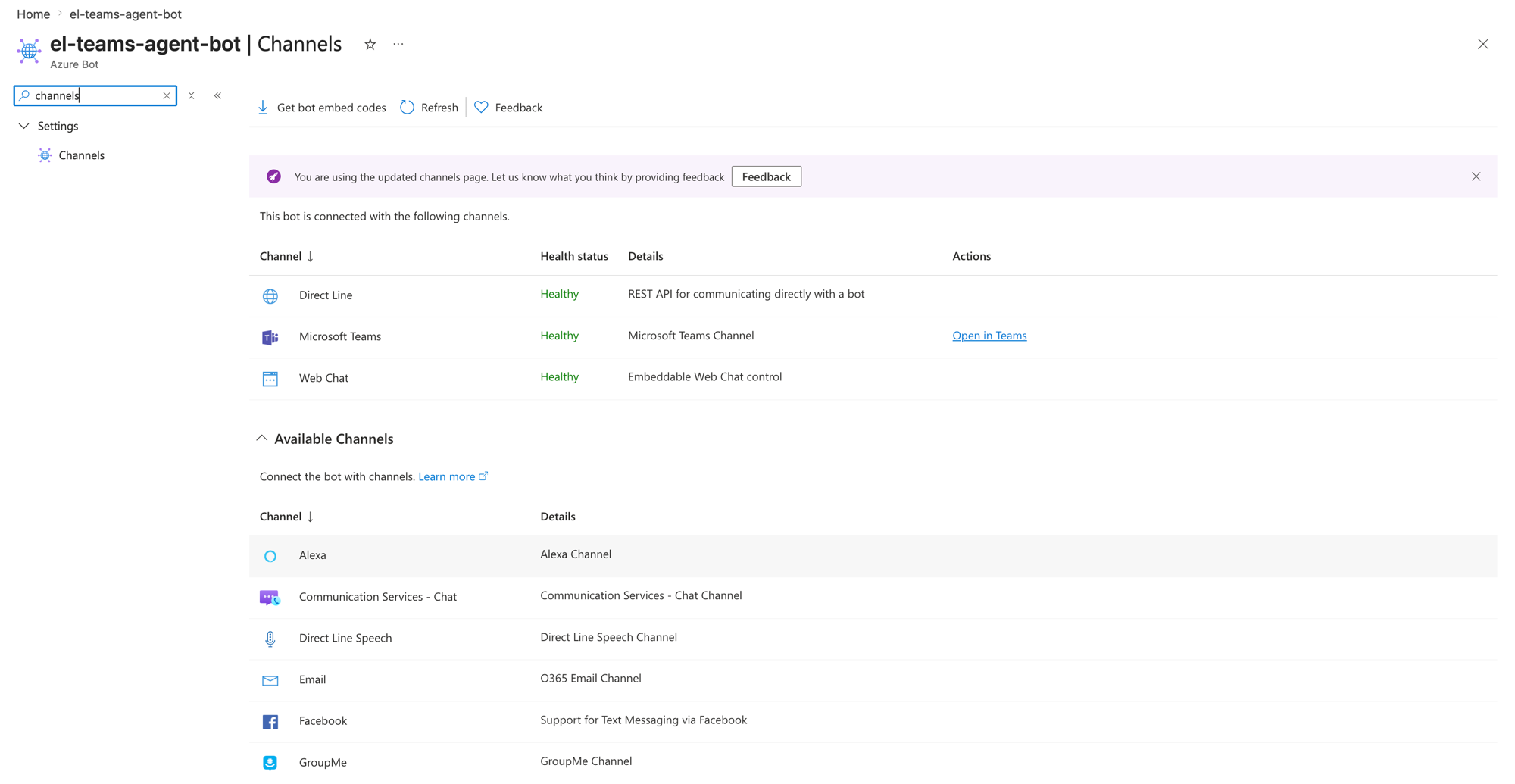
    In the portal this lives at your Azure Bot resource → ChannelsMicrosoft TeamsCalling tab:

    The Azure Bot Channels blade listing the Microsoft Teams channel as
healthy

    Azure Bot → Channels — the connected Microsoft Teams channel
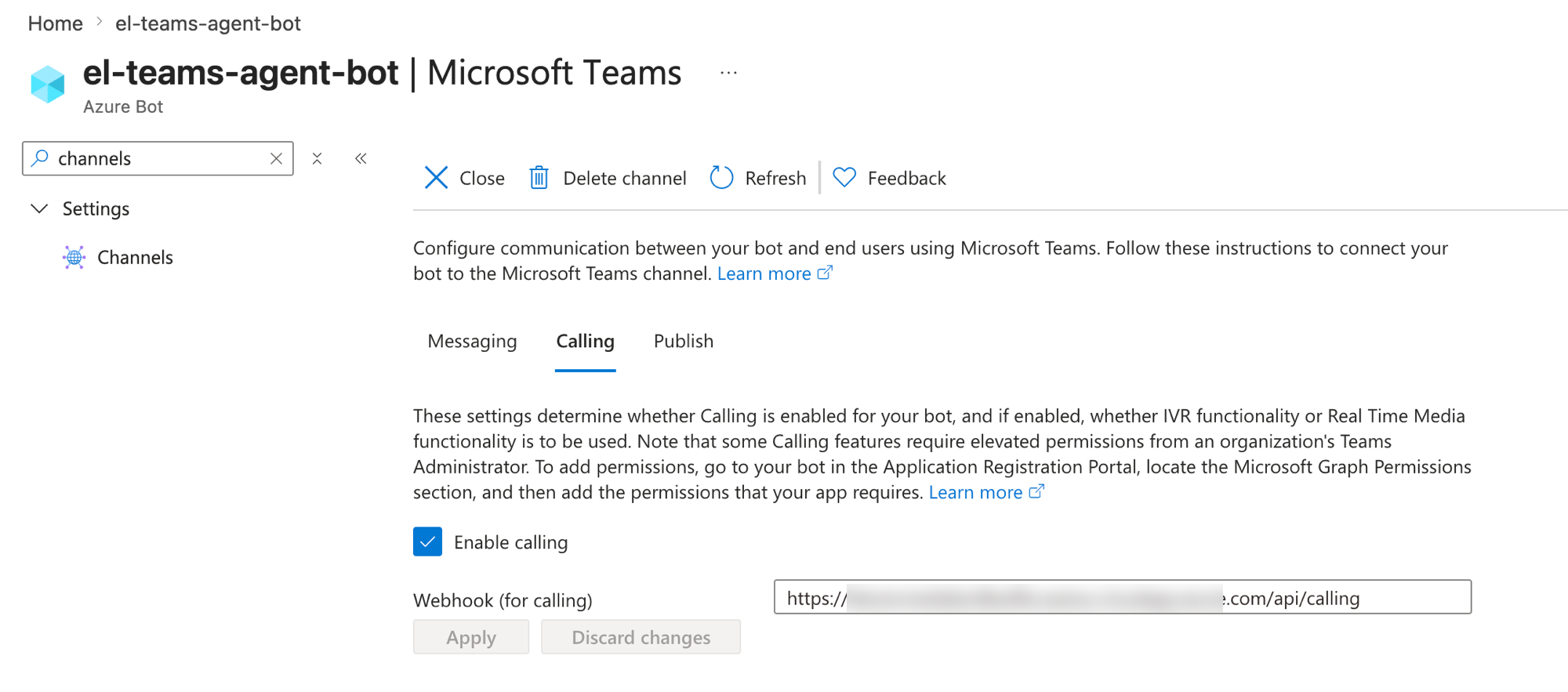
    The Teams channel Calling tab with Enable calling checked and the calling webhook
set

    Microsoft Teams channel → Calling — calling enabled with the bot's webhook
  2. Build a Teams app manifest with bots[0].supportsCalling: true and the bot’s app ID, then sideload it (Apps → Manage your apps → Upload a custom app), or publish it org-wide without the UI: New-TeamsApp -DistributionMethod organization -Path ./bot-app.zip (MicrosoftTeams PowerShell module).

Search the app by name in Teams and call it — the bot answers and the ElevenLabs agent speaks.
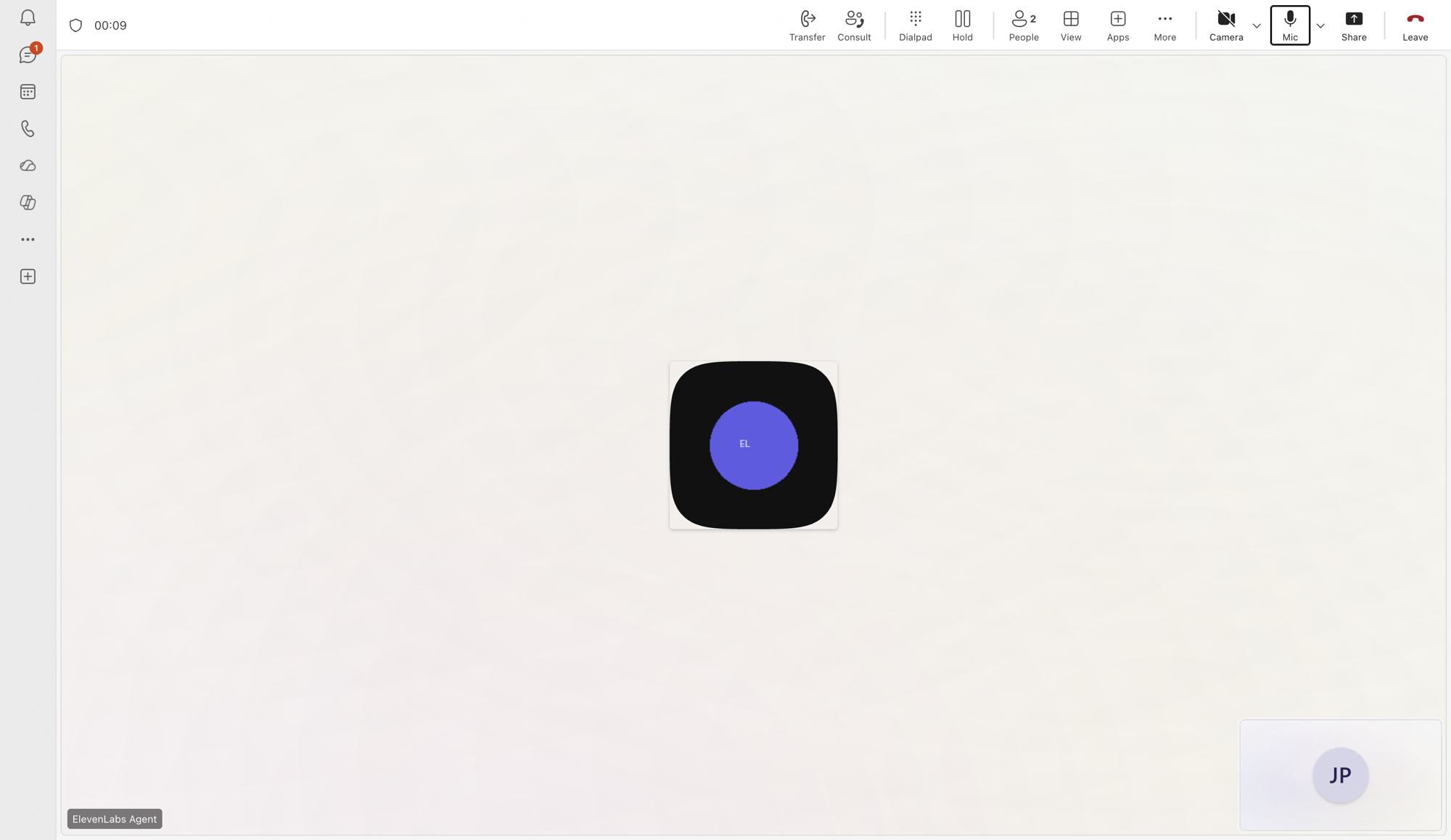
An active Teams call with the ElevenLabs agent
bot

A live 1:1 call with the agent — note Transfer and Consult in the call toolbar

No phone number or resource account is needed for 1:1 call-by-name — those are only for PSTN dial-in. Calls.AccessMedia.All is what enables the raw-audio bridge.

Text chat (same bot)

The same Azure Bot can also answer text in Teams — so users can either call the agent or chat with it. Calling and messaging are independent channels on the bot: the calling webhook handles voice, and a Bot Framework messaging endpoint (/api/messages) handles chat.
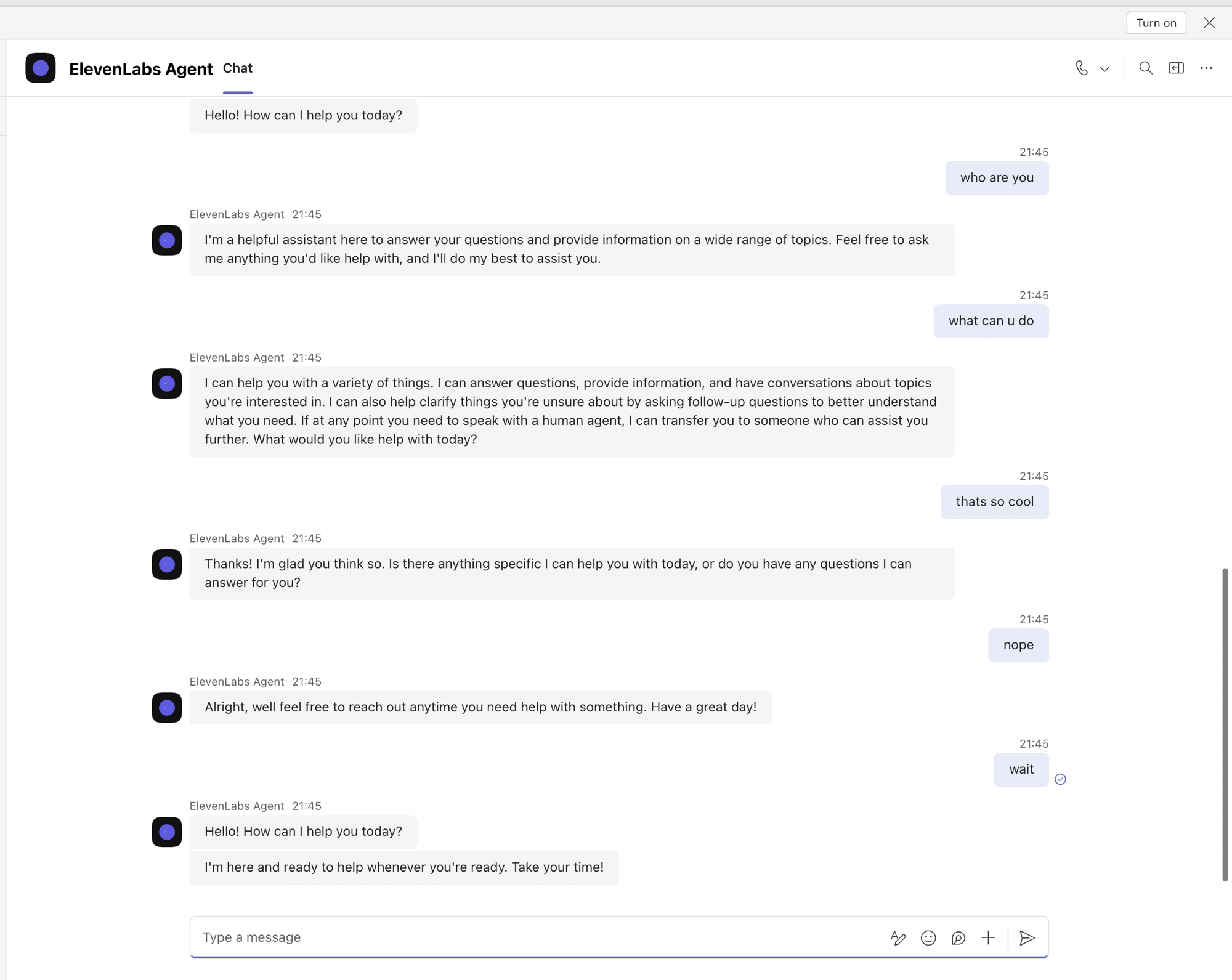
A Teams chat with the ElevenLabs agent bot answering text
messages

Chatting with the same bot in Teams

Point the bot’s messaging endpoint at whichever host serves it (the media bot, or any other service — it doesn’t have to be the Windows VM):

$az bot update -g $RG -n el-teams-agent-bot --endpoint "https://YOUR_FQDN/api/messages"

Implement the endpoint with the Bot Framework SDK and relay each message to the agent in text mode over the same conversation WebSocket used for voice — send a user_message event, read the agent_response event. First enable the first message field under the agent’s overrides settings — the code below overrides it to empty so the reply is the answer to the user’s message rather than the agent’s greeting:

ChatBot.cs — Teams text chat -> ElevenLabs (text mode)
1public class ChatBot : ActivityHandler
2{
3 private readonly AppSettings _settings;
4 public ChatBot(AppSettings settings) => _settings = settings;
5
6 protected override async Task OnMessageActivityAsync(
7 ITurnContext<IMessageActivity> turn, CancellationToken ct)
8 {
9 var reply = await AskAgent(turn.Activity.Text, ct);
10 await turn.SendActivityAsync(MessageFactory.Text(reply), ct);
11 }
12
13 private async Task<string> AskAgent(string text, CancellationToken ct)
14 {
15 using var ws = new ClientWebSocket();
16 var url = $"{_settings.ElevenLabsOrigin}/v1/convai/conversation?agent_id={_settings.ElevenLabsAgentId}";
17 await ws.ConnectAsync(new Uri(url), ct);
18 // Suppress the agent's greeting: with no override, the first agent_response is the
19 // configured first message, not the answer to this user_message.
20 await Send(ws, new
21 {
22 type = "conversation_initiation_client_data",
23 conversation_config_override = new { agent = new { first_message = "" } },
24 }, ct);
25 await Send(ws, new { type = "user_message", text }, ct);
26
27 var buf = new byte[16384]; var sb = new StringBuilder();
28 while (ws.State == WebSocketState.Open)
29 {
30 sb.Clear(); WebSocketReceiveResult r;
31 do { r = await ws.ReceiveAsync(buf, ct); sb.Append(Encoding.UTF8.GetString(buf, 0, r.Count)); }
32 while (!r.EndOfMessage);
33
34 using var doc = JsonDocument.Parse(sb.ToString());
35 switch (doc.RootElement.GetProperty("type").GetString())
36 {
37 case "agent_response":
38 return doc.RootElement.GetProperty("agent_response_event")
39 .GetProperty("agent_response").GetString();
40 case "ping":
41 await Send(ws, new { type = "pong", event_id = doc.RootElement
42 .GetProperty("ping_event").GetProperty("event_id").GetInt32() }, ct);
43 break;
44 }
45 }
46 return "Sorry, I couldn't reach the agent.";
47 }
48
49 private static Task Send(ClientWebSocket ws, object msg, CancellationToken ct) =>
50 ws.SendAsync(Encoding.UTF8.GetBytes(JsonSerializer.Serialize(msg)),
51 WebSocketMessageType.Text, true, ct);
52}

Register it the standard way (a CloudAdapter, the bot via AddTransient<IBot, ChatBot>(), and a /api/messages controller), and add chat scopes to the manifest’s bot entry:

1"bots": [
2 { "botId": "YOUR_APP_ID", "supportsCalling": true, "scopes": ["personal", "team", "groupChat"] }
3]

The snippet opens a fresh conversation per message, so each turn is independent. For chat memory, keep one WebSocket open per Teams conversation.id (reuse it across turns) and reap idle sessions — the agent then remembers earlier messages in that chat. The first_message override must be enabled under the agent’s overrides settings — the server closes the conversation if a disallowed override is sent. If you can’t enable it, omit the override and instead discard the first agent_response of each session (the greeting) and return the next one.

If chat replies never arrive, enable the agent_response client event in the agent’s Advanced settings — text responses are delivered through that event.

End of call

When ElevenLabs ends the conversation (its End Call tool closes the WebSocket), hang up the Teams leg:

1await this.Call.DeleteAsync(); // after a short delay so the goodbye audio finishes

Warm transfer to a human

The agent fires a custom transfer_to_human client tool; the bot invites a Teams user into the live call (consultative add), then steps back:

1var target = new IdentitySet { User = new Identity { Id = humanObjectId } };
2await this.Call.Participants.InviteAsync(target, replacesCallId: null);
3// suppress the end-call hangup while transferring, and mute the bot

Consultative transfer (replacesCallId) requires both parties be Teams users in the same tenant; PSTN transfer targets require an application instance. To brief the human first, pass a reason parameter from the agent and play it to the human before bridging.

Troubleshooting

The VM has only one physical core. Resize to ≥ 2 physical cores (e.g. D4s_v3) and restart.

Install the VC++ Redistributable (vcredist140) and the Server-Media-Foundation Windows feature, then restart the bot.

The EchoBot port-null bug on 443 — patch HttpHelpers.SetAbsoluteUri (see Step 3). Also confirm the cert is CA-signed and reachable on 443.

Confirm Calling is enabled on the Teams channel with the correct /api/calling webhook, the Graph Calls.AccessMedia.All permission is consented, and ports 443/8445/9441 are open on both the NSG and the Windows firewall. If calling used to work and stopped, check the bot process is still running on the VM — Task Scheduler’s default 72-hour execution limit kills it a few days after boot (see the warning in Step 3).